LyfeConnex in ten minutes
Ten short steps, from your first entry to the assistant. Follow along in the app, or simply read.
Create your account
Sign up with your email or Google, then take the short tour: your goals, the areas you want, and a theme. Every step can be skipped.
- Pick only the areas you care about; the rest stay out of your way
- Change your mind any time in Settings › Manage Aspects
Meet Home
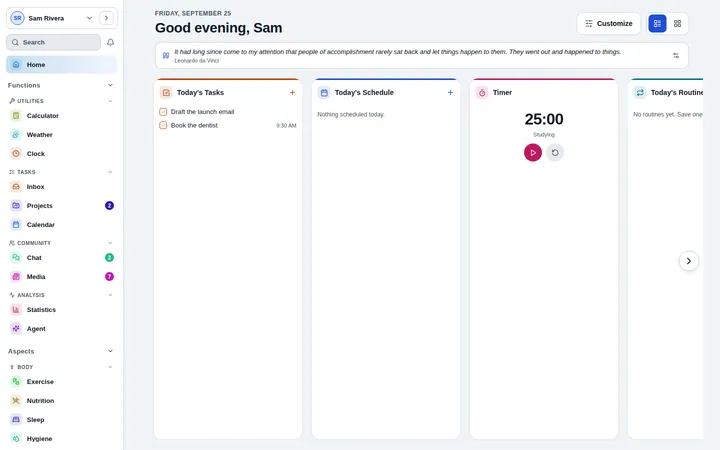
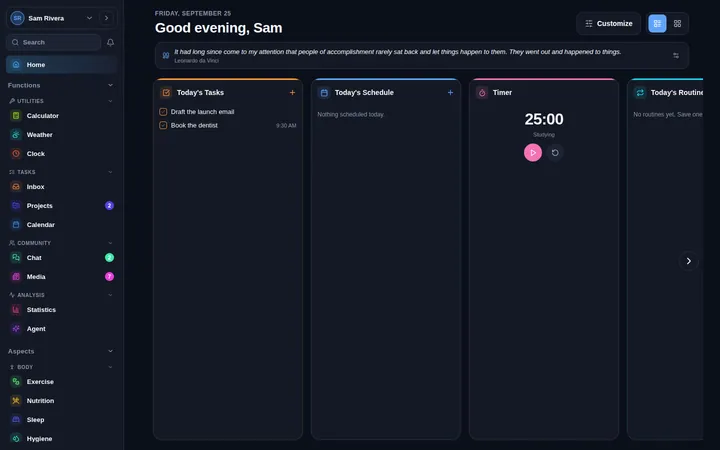
Home shows today at a glance: your tasks, your schedule, the timers that are running and the widgets you choose.
- Customize Home adds, removes and arranges widgets
- A quote of the day can greet you at the top
Record anything with Start and Log
Every tracking tab has the same two buttons. Start begins something as it happens and a timer follows you around the app; Log records something that is already over.
- Quick add records or starts a timer from any screen
- A finished session lands in its tab and on your calendar
Capture tasks and plan the day
The inbox catches everything you need to do, and the calendar holds your events next to the calendars you already keep.
- Press N for a task and C for an event on a computer
- Overdue and completed tasks wait in their own panels
Run a project
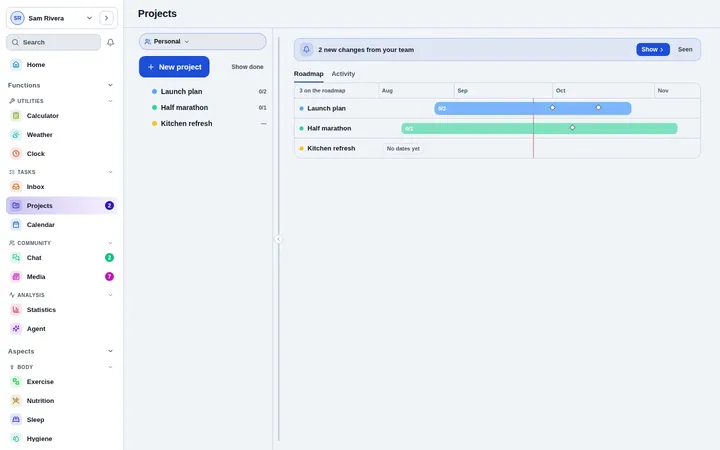
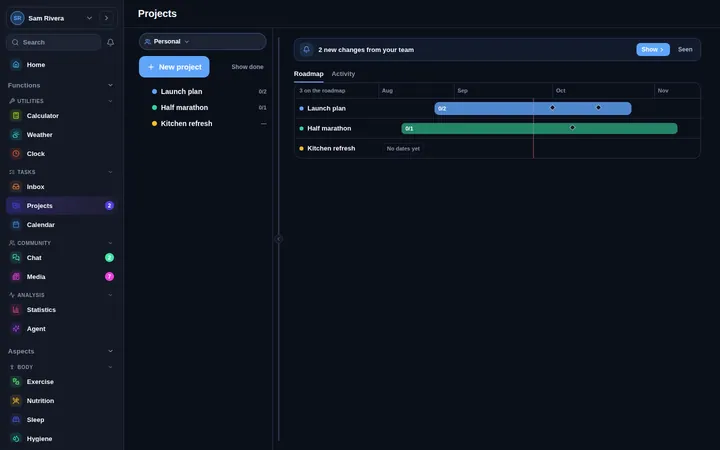
Projects hold tasks, milestones and a roadmap you can drag. Health signals show which projects are on track, and the activity feed says what changed.
- Invite your team to a workspace by email
- Save the views you check every day
Write, sketch and keep notes
Notes holds text, sketches, diagrams, slides, sheets and marked-up PDFs in folders you browse like a drive.
- Sketches read pen pressure and tidy rough shapes
- The graph shows how the notes in a folder connect
See what is working
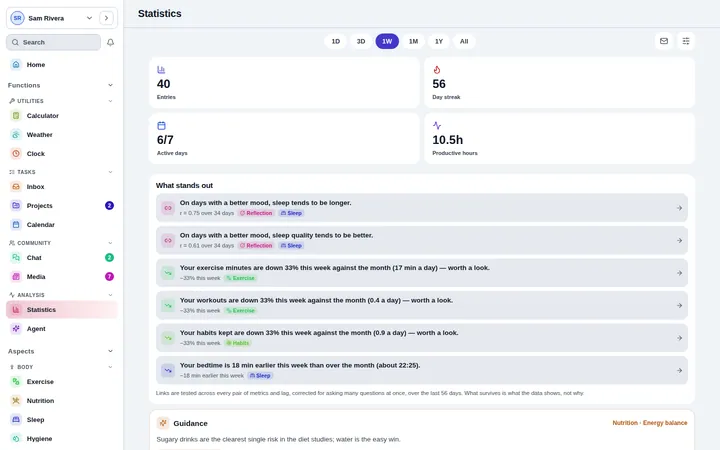
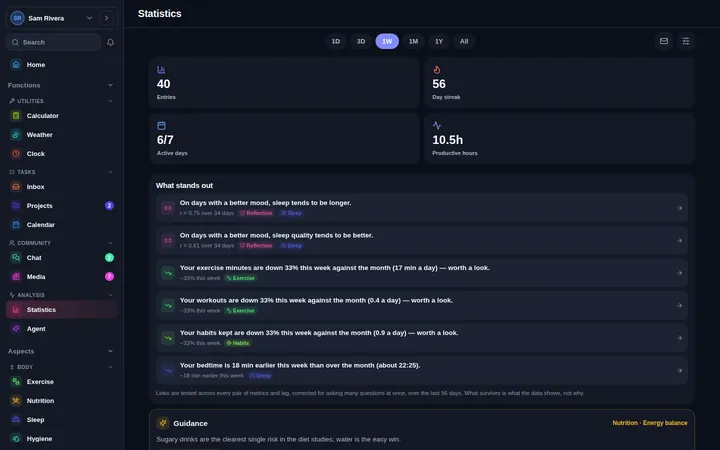
After a couple of weeks of entries, Statistics shows how your areas move together, where they are heading and what stands out, with an honest measure of how sure it is.
- Customise cards picks what Statistics shows
- Email automations can send you a weekly digest
Read the guidance
Under each tab, one research-backed tip speaks to your weakest signal. Tap Why to see the finding and its sources, or open the tab’s guidebook from the Info icon.
- Every tip rests on at least five independent peer-reviewed sources
- The Science library on this site has every guidebook
Bring in the assistant
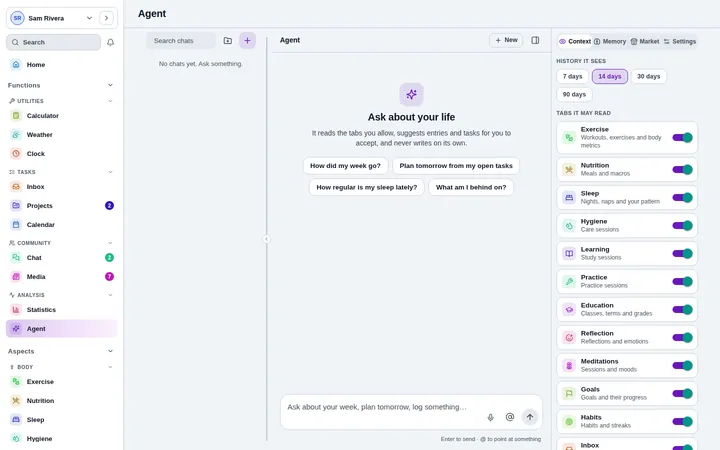
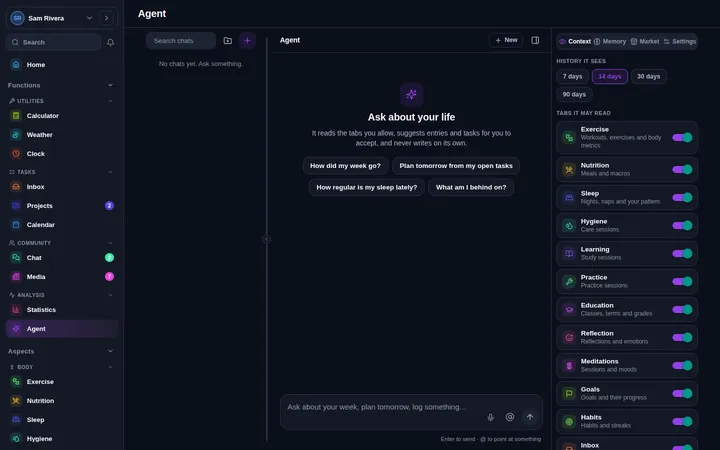
Connect your own AI key, or install a model that runs on your device. The assistant drafts plans and changes as suggestions, and nothing happens until you say yes.
- Choose which tabs it may read
- Autopilot can plan your morning and review your week
Lock what is private
Set a master key, then lock any tab. An encrypted lock seals the tab on your device before it syncs, so nobody else can read it, us included.
- Tabs can lock themselves after a while
- On phones, open them with your fingerprint or face
You know your way around
That is the whole app. Start with one area today, and add the rest when you are ready.